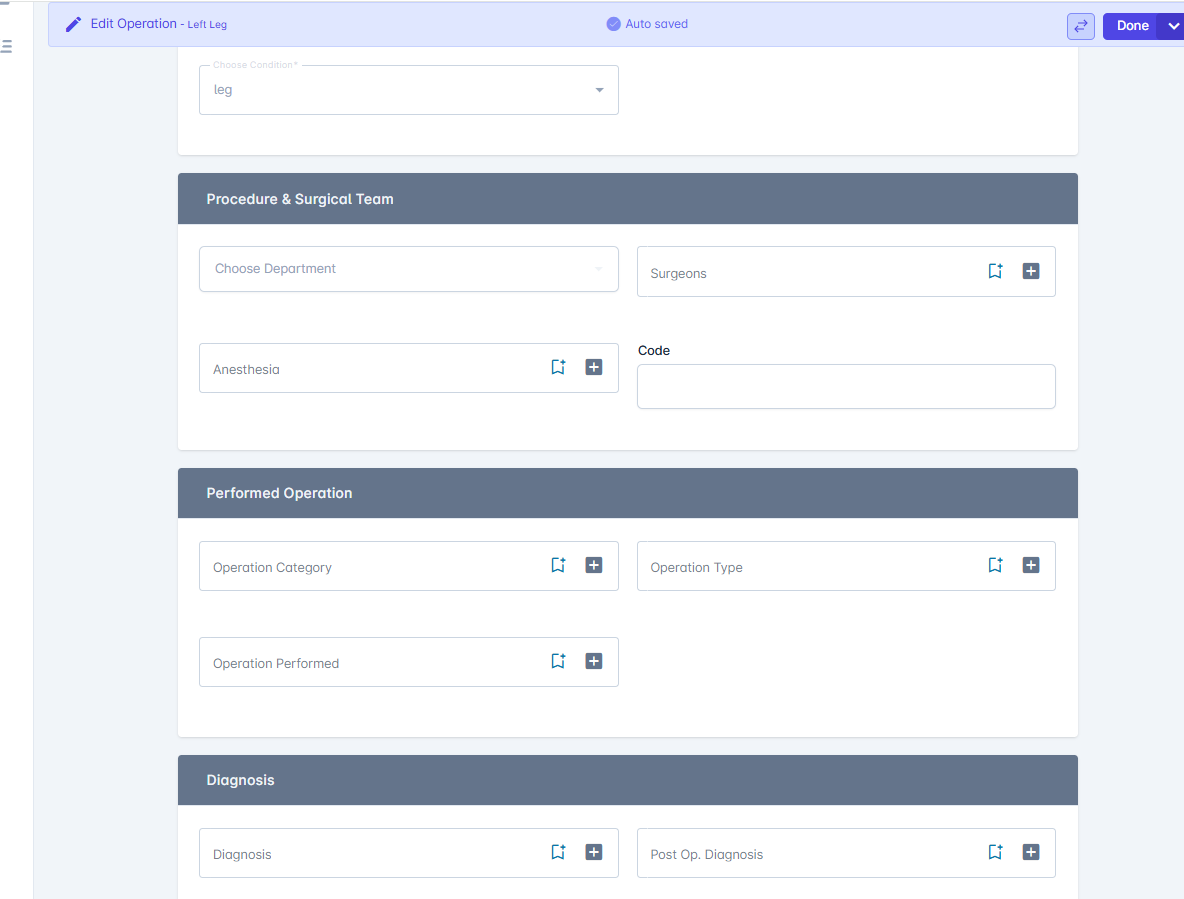
How to add Operation:
- Go to the Patient Profile
- Open the patient list and select the patient you want.
- Access the Condition
- In the patient profile, navigate to the Conditions section.
- Click on the specific condition you want to link the opeartion to.
- Click “+opeartion”
-
Look for the +Operation button or icon within the condition details.
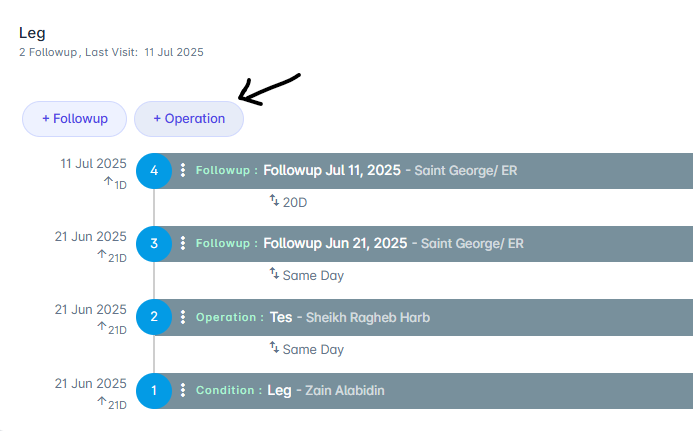
-
Look for the +Operation button or icon within the condition details.
- Enter Operation Details
- Fill in required fields such as:
- Operation name
- opeartion type
- entry date
- location
- Fill in required fields such as:
- Save the Follow-Up
- Click Done to create the operation
How to edit Operation
- Go to the Patient Profile
- Open the patient list and select the patient whose follow-up you want to edit.
- Access the Condition
- In the patient profile, navigate to the Conditions section.
- Click on the specific condition linked to the operation
- Locate the opeartion
- Find the opeartion entry you want to update under the condition details.
- Click the Pencil Icon
-
Click the pencil icon on the right side of the opeartion entry to open it for editing.
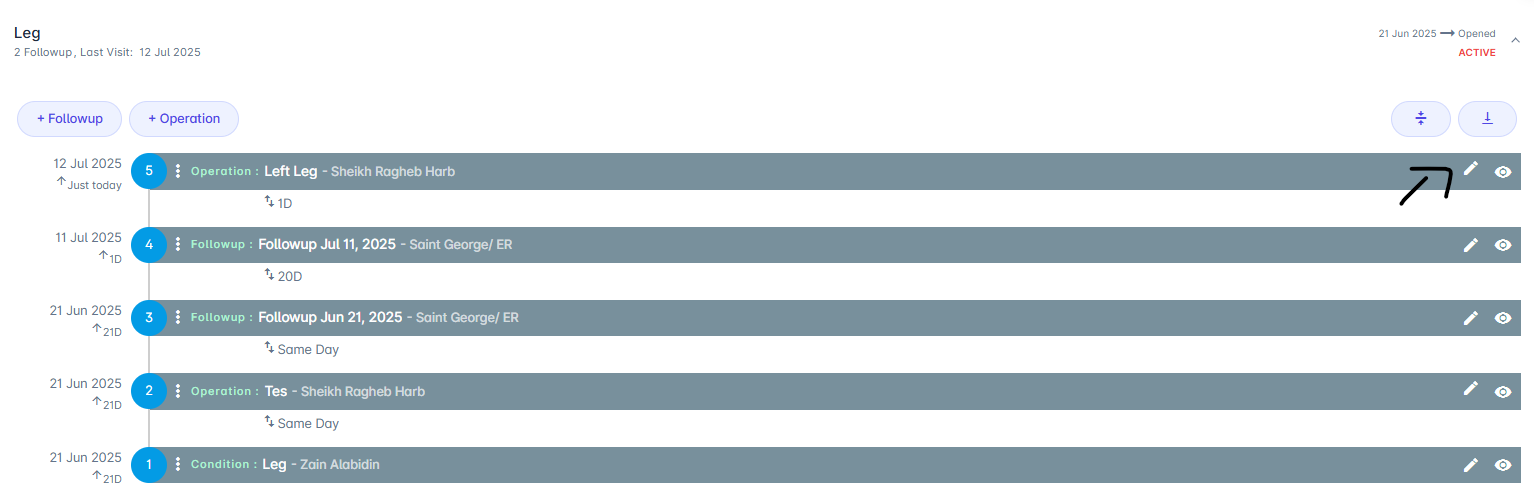
-
Click the pencil icon on the right side of the opeartion entry to open it for editing.
- Update Follow-Up Details
- Modify any necessary fields
- Save Changes
- Click Done or Update to confirm your edits.
Operation details
- Main:( operation name , entry date, location…)
- Procedure & Surgical Team
- Performed Operation
- Diagnosis
- Operation Details
- Attachment files