

How to add a condition?
- Open Patient Profile:
From the Patients list, select the patient whose medical conditions you want to update. - Go to Conditions Section:
Inside the patient profile, find and open the Conditions . - Click “New Condition”:
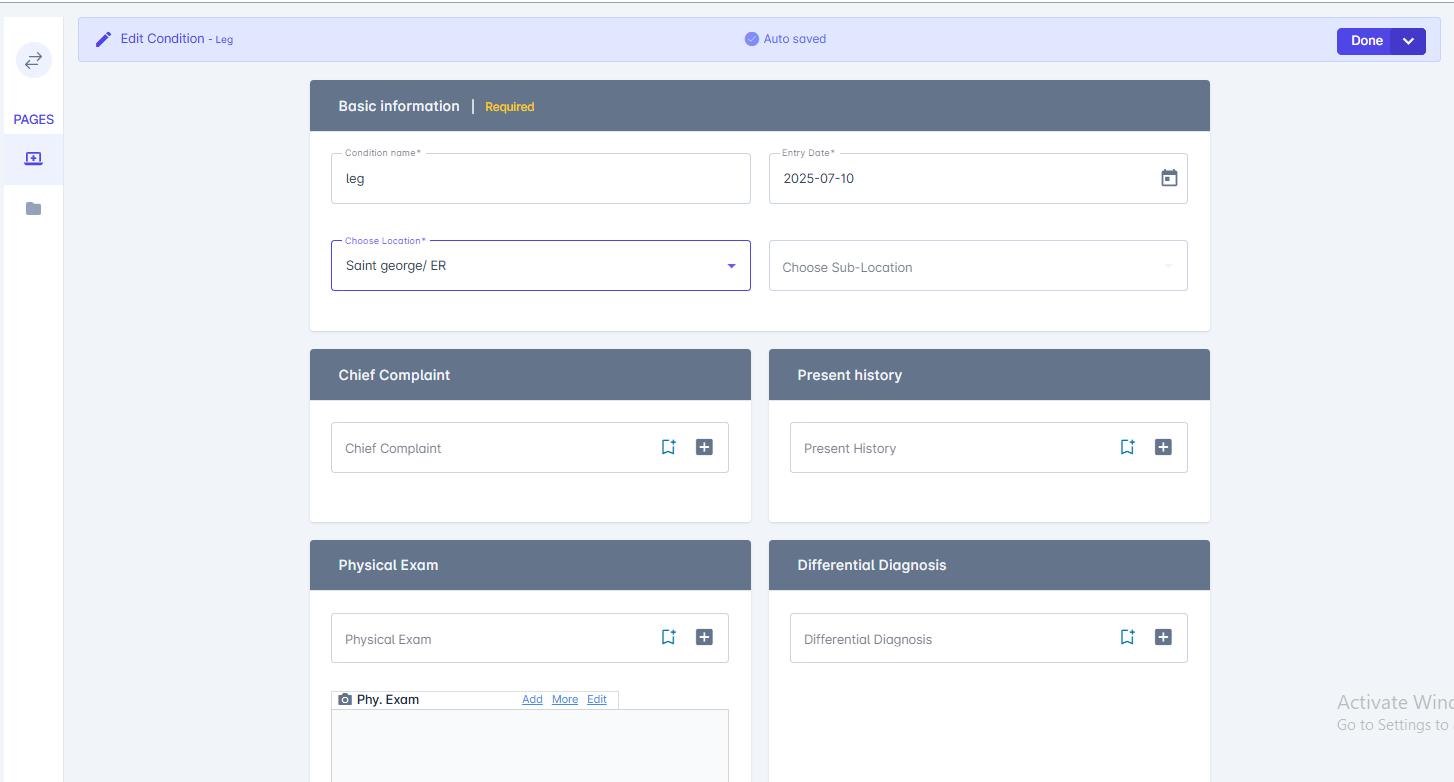
Press the New Condition button to open the entry form. - Enter Condition Details:
Fill in the condition name, diagnosis date, chief complain, and any additional notes or comments. - Save the Condition:
Click Save to add the condition to the patient’s medical record.
How to Edit a Condition?
- Open the Patient Profile:
Select the patient from the patient list whose condition you want to update. - Go to the Conditions Section:
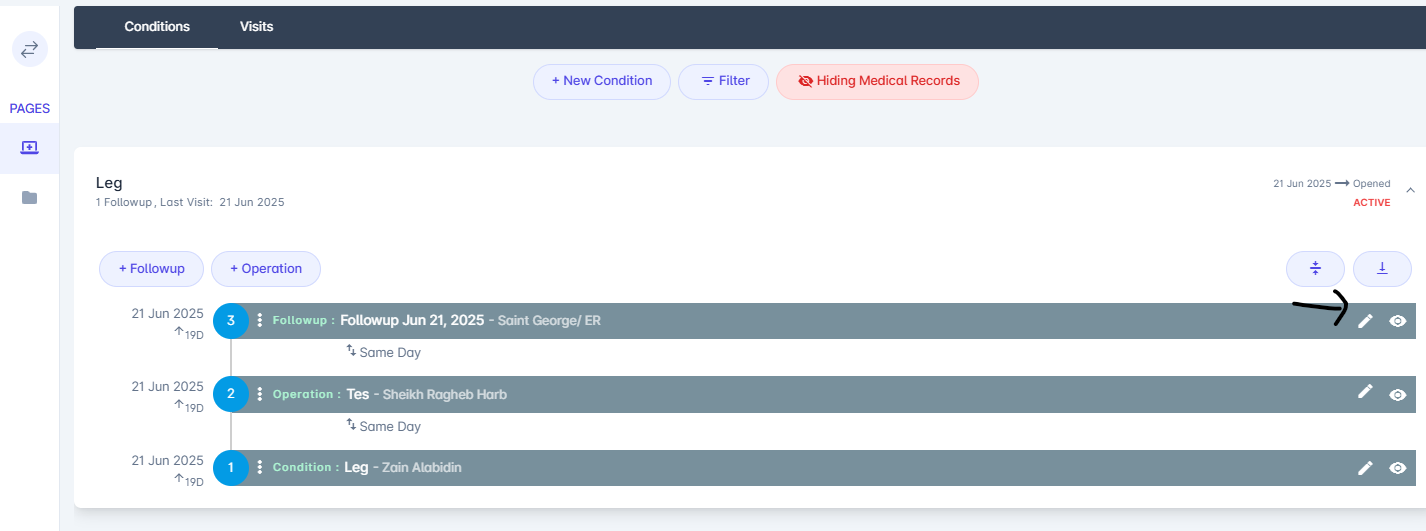
Navigate to the Conditions within the patient’s profile. - Select the Condition to Edit:
Click on the condition you want to modify to open its details. - Update Condition Details:
Click **Edit **at the right side of the condition to edit name, notes, diagnoses, or any other relevant information. - Save Changes:
Click Done to apply the updates to the patient’s record.
Condition details:
- Basic information
- chief complain
- Present history
- Physical exam
- Differential diagnosis
- physical exam
- Diagnoses
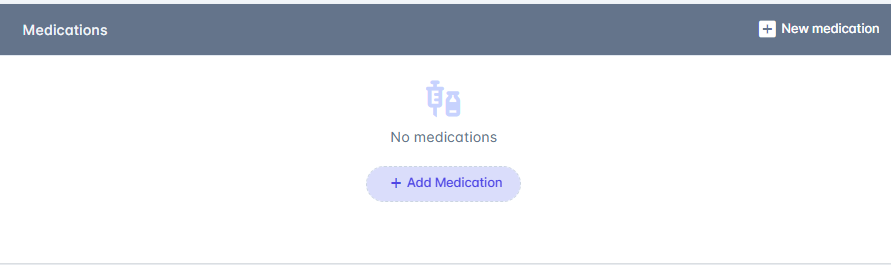
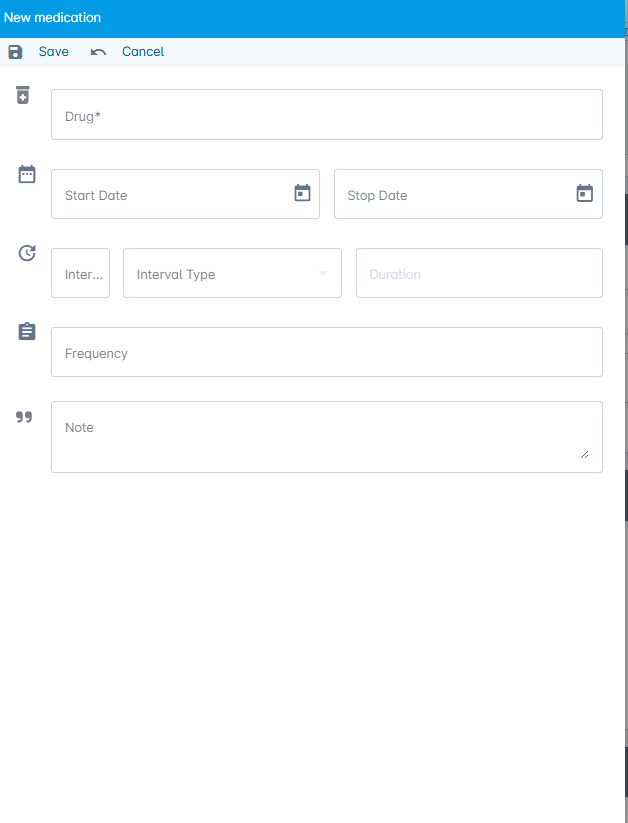
- Medication:
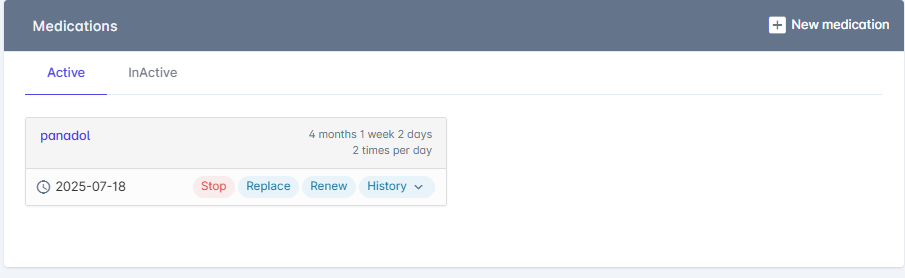
- Notes
- Attachment