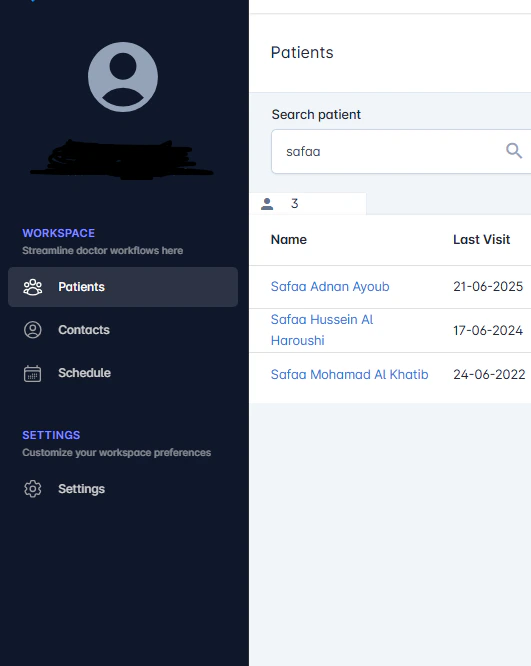
Located on the left-hand side, the sidebar is your primary navigation tool. It includes:
  • Patient File – View, create, and manage full patient medical records
  • Contact File – Manage individuals who are not yet full patients
  • Schedule – Schedule, view, and update all clinic appointments
  • **Settings ** – Configure clinic-wide preferences and system behavior Screenshot2025 07 08190343 Pn
Access to the Settings module is restricted by default. The Admin has the authority to grant or revoke permission for other users to access system settings based on their roles and responsibilities.

Top Bar (Utilities)

At the top of the screen, you’ll find:
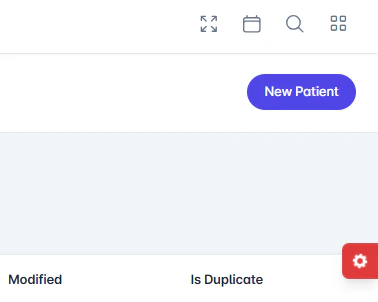
  • Toggle Fullscreen-expands the view for a distraction-free workspace.
  • Create appointment -to schedule a visit or event for a patient or contact.
  • Search Bar – Quickly search for patients, contacts, or appointments
  • Control – Show upload files and event Screenshot2025 07 08191059 Pn

    Layout Setting

    The red gear icon on the bottom-right corner opens the Interface Settings panel, allowing users to personalize their workspace. Options include:
  • Theme –Choose a color style that suits your workflow
  • Layout – Modify interface structure for personal preference
  • Color Scheme – switch between light or dark mode Screenshot2025 07 08191339 Pn
    These changes affect only the current user’s view and do not impact system-wide settings.

In-Page Navigation

Inside each module, navigation tabs help you move between sections. For example:
  • In Patient File, tabs might include: Personal Info, Medical History, Visits, Documents
  • In Appointments, tabs may separate Scheduled, Completed, and Canceled visits

Tips for Efficient Navigation

  • Use the search bar for quick access instead of browsing menus
  • Hover over icons to view tooltips explaining their function