> ## Documentation Index
> Fetch the complete documentation index at: https://docs.medicare-group.net/llms.txt
> Use this file to discover all available pages before exploring further.
# Add/Edit Operation
> The operation allows users to add new reminders or care tasks linked to a patient’s condition, ensuring proper tracking and continuity of care. Users can enter details like reason, date, and assigned provider. Existing operation can be edited by clicking the pencil icon to update information as needed. These operations keep patient records accurate and actionable.
## How to add Operation:
* **Go to the Patient Profile**
* Open the patient list and select the patient you want.
* **Access the Condition**
* In the patient profile, navigate to the **Conditions** section.
* Click on the specific condition you want to link the opeartion to.
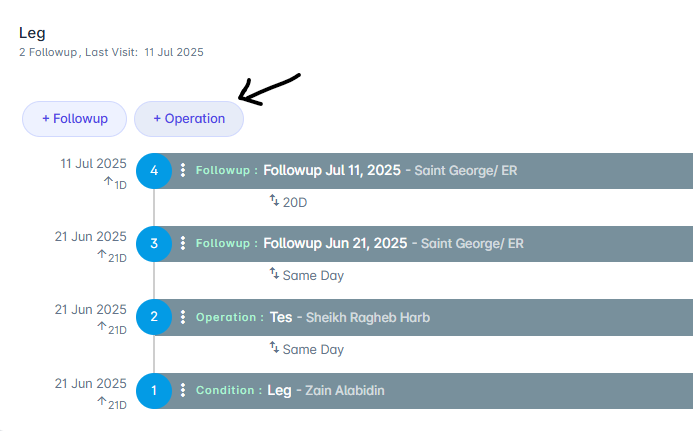
* **Click “+opeartion”**
* Look for the **+Operation** button or icon within the condition details.
 * **Enter Operation Details**
* Fill in required fields such as:
* Operation name
* opeartion type
* entry date
* location
* **Save the Follow-Up**
* Click **Done** to create the operation
## How to edit Operation
* **Go to the Patient Profile**
* Open the patient list and select the patient whose follow-up you want to edit.
* **Access the Condition**
* In the patient profile, navigate to the **Conditions** section.
* Click on the specific condition linked to the operation
* **Locate the opeartion**
* Find the opeartion entry you want to update under the condition details.
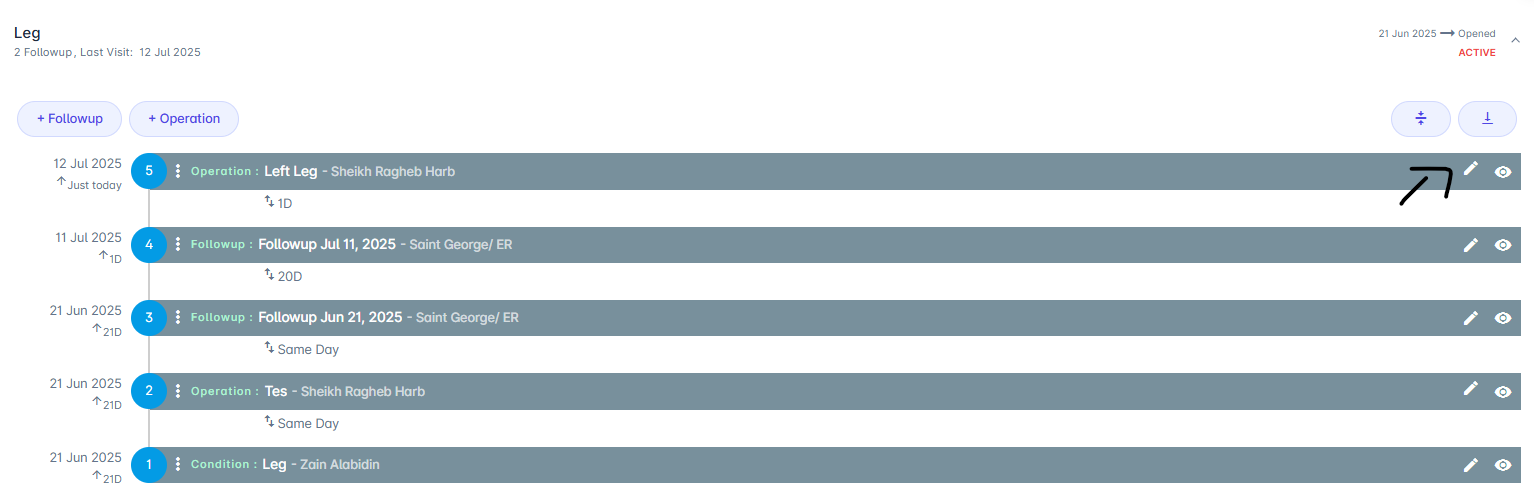
* **Click the Pencil Icon**
* Click the **pencil icon** on the right side of the opeartion entry to open it for editing.
* **Enter Operation Details**
* Fill in required fields such as:
* Operation name
* opeartion type
* entry date
* location
* **Save the Follow-Up**
* Click **Done** to create the operation
## How to edit Operation
* **Go to the Patient Profile**
* Open the patient list and select the patient whose follow-up you want to edit.
* **Access the Condition**
* In the patient profile, navigate to the **Conditions** section.
* Click on the specific condition linked to the operation
* **Locate the opeartion**
* Find the opeartion entry you want to update under the condition details.
* **Click the Pencil Icon**
* Click the **pencil icon** on the right side of the opeartion entry to open it for editing.
 * **Update Follow-Up Details**
* Modify any necessary fields
* **Save Changes**
* Click **Done** or **Update** to confirm your edits.
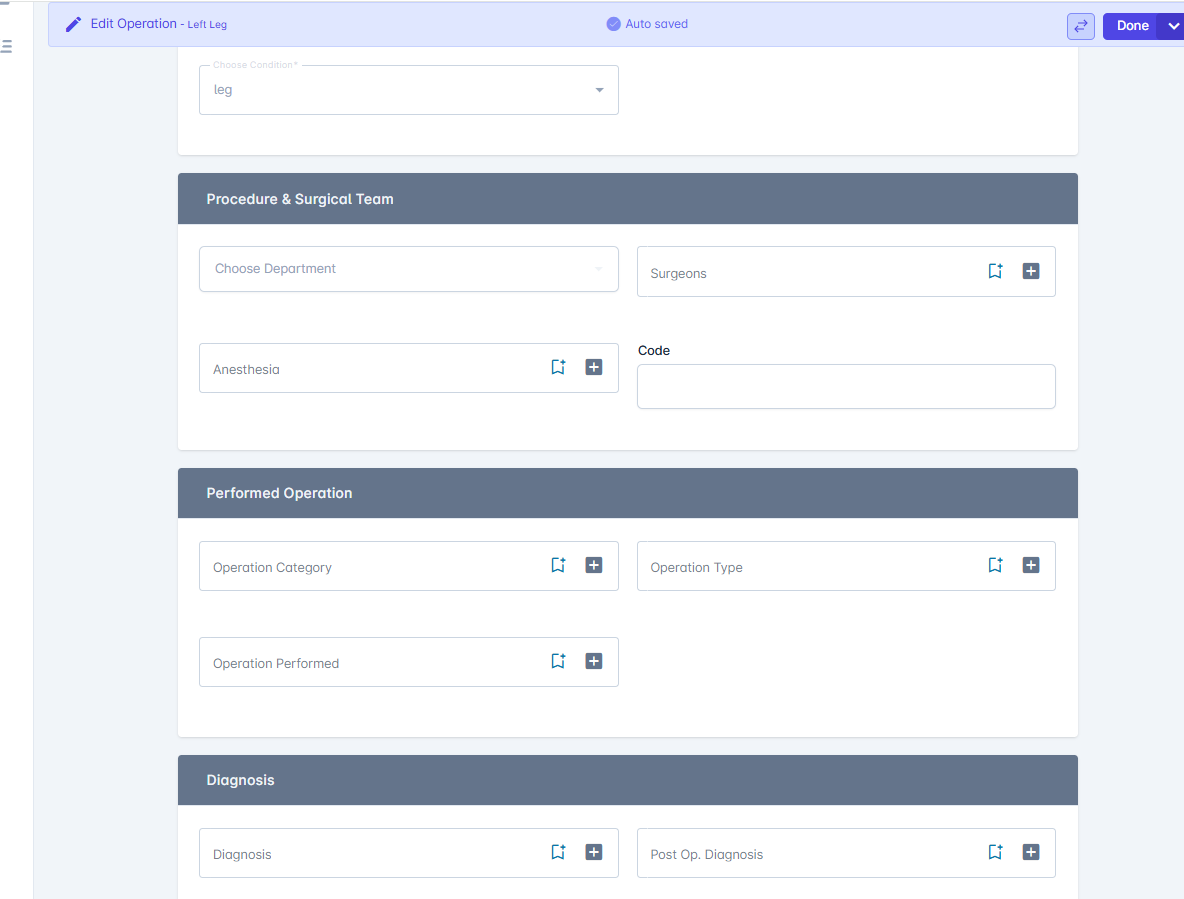
## Operation details
* Main:( operation name , entry date, location...)
* Procedure & Surgical Team
* Performed Operation
* Diagnosis
* Operation Details
* Attachment files
* **Update Follow-Up Details**
* Modify any necessary fields
* **Save Changes**
* Click **Done** or **Update** to confirm your edits.
## Operation details
* Main:( operation name , entry date, location...)
* Procedure & Surgical Team
* Performed Operation
* Diagnosis
* Operation Details
* Attachment files