> ## Documentation Index
> Fetch the complete documentation index at: https://docs.medicare-group.net/llms.txt
> Use this file to discover all available pages before exploring further.
# Add/Edit Followup
> In MedRay, users can add follow-up notes or appointments to track ongoing patient care. Existing follow-ups can be edited to update dates, details, or reminders. This ensures continuous and organized patient management. In MedRay, every follow-up is linked to a specific patient condition for precise tracking. Users can add new follow-ups or edit existing ones to update dates, details, or reminders. This helps ensure continuous and condition-focused patient care.
## How to Add Followup:
1. **Open the Patient Profile:**\
Select the patient whose follow-up you want to create.
2. **Go to the Conditions Section:**\
Find the specific condition you want to link the follow-up to.
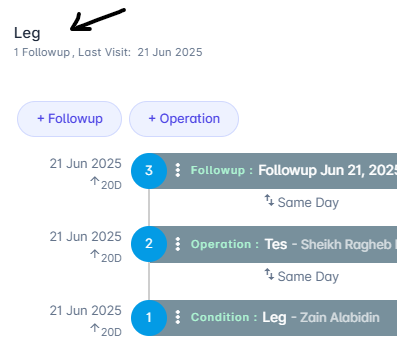
3. **Click “+Follow-Up”:**\
Select the option to add a new follow-up.
 4. **Enter Follow-Up Details:**\
Fill in the date, purpose, notes, and any reminders related to the follow-up.
4. **Enter Follow-Up Details:**\
Fill in the date, purpose, notes, and any reminders related to the follow-up.
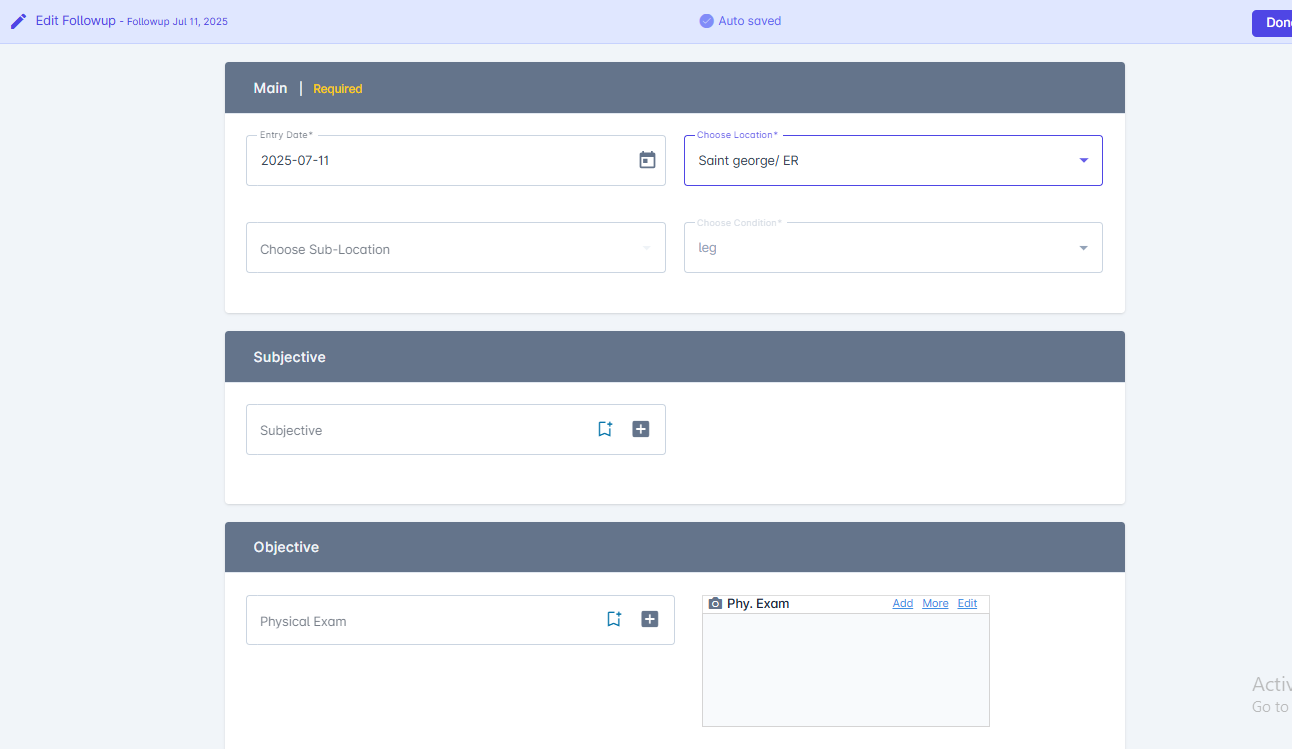 5. **Save the Follow-Up:**\
Click **Done** to link the follow-up to the patient’s condition.
## How to Edit Followup?
1. **Go to the Patient Profile**
* Open the patient list and select the patient whose follow-up you want to edit.
2. **Access the Condition**
* In the patient profile, navigate to the **Conditions** section.
* Click on the specific condition linked to the follow-up.
3. **Find the Related Follow-Up**
* Locate the follow-up entry related to that condition.
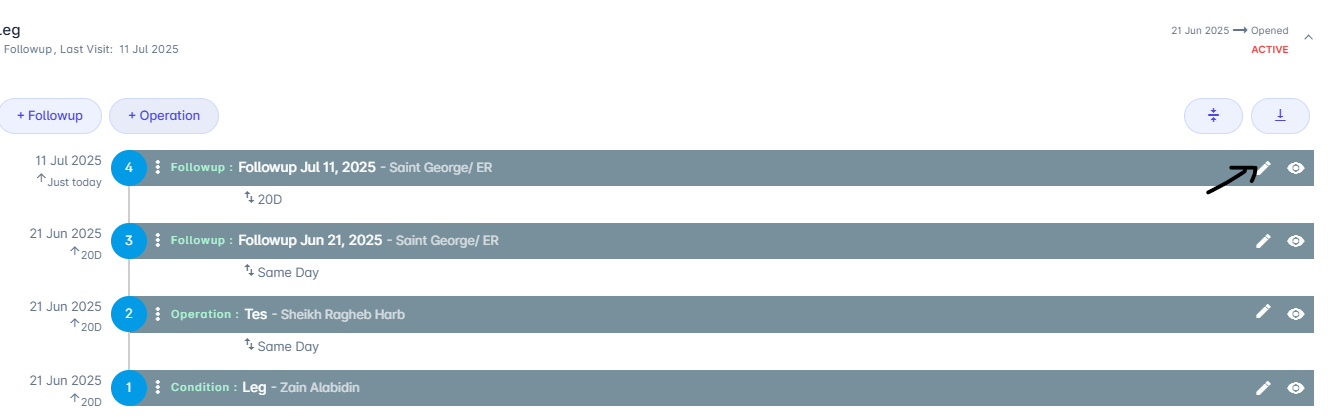
4. **Click the Edit Icon**
* Click the **pencil icon** on the right side of the follow-up entry.
5. **Save the Follow-Up:**\
Click **Done** to link the follow-up to the patient’s condition.
## How to Edit Followup?
1. **Go to the Patient Profile**
* Open the patient list and select the patient whose follow-up you want to edit.
2. **Access the Condition**
* In the patient profile, navigate to the **Conditions** section.
* Click on the specific condition linked to the follow-up.
3. **Find the Related Follow-Up**
* Locate the follow-up entry related to that condition.
4. **Click the Edit Icon**
* Click the **pencil icon** on the right side of the follow-up entry.
 5. **Edit the Follow-Up Details**
* Update any necessary fields, such as date, notes, or assigned provider.
6. **Save Changes**
* Click **Done** to confirm your changes.
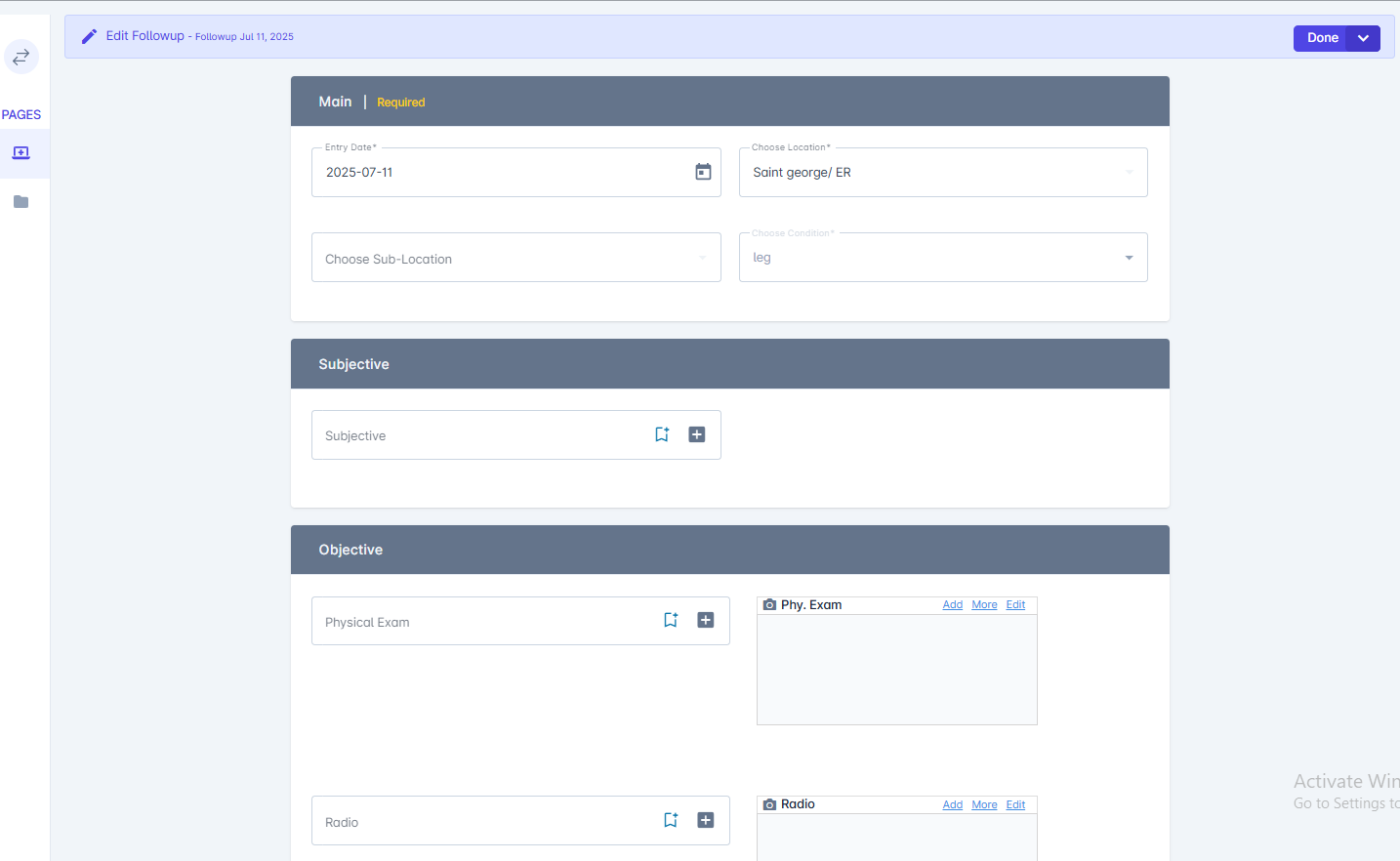
## Followup details:
* Main: Requeired feilds
* Subjective
* Objective\_: \_Physical exam *,*Radio*,*Laboratory*,Consultation*
* Assesment
* Diagnosis
* Notes
* Medication
* Attachment
5. **Edit the Follow-Up Details**
* Update any necessary fields, such as date, notes, or assigned provider.
6. **Save Changes**
* Click **Done** to confirm your changes.
## Followup details:
* Main: Requeired feilds
* Subjective
* Objective\_: \_Physical exam *,*Radio*,*Laboratory*,Consultation*
* Assesment
* Diagnosis
* Notes
* Medication
* Attachment