> ## Documentation Index
> Fetch the complete documentation index at: https://docs.medicare-group.net/llms.txt
> Use this file to discover all available pages before exploring further.
# Add/Edit Condition
> In MedRay, users can add new medical conditions to a patient’s record or edit existing ones to keep health information accurate. Conditions can be updated, modified, or removed as needed. This ensures patient records stay current and complete.
## How to add a condition?
* **Open Patient Profile:**\
From the Patients list, select the patient whose medical conditions you want to update.
* **Go to Conditions Section:**\
Inside the patient profile, find and open the **Conditions** .
* **Click “New Condition”:**\
Press the **New Condition** button to open the entry form.
* **Enter Condition Details:**\
Fill in the condition name, diagnosis date, chief complain, and any additional notes or comments.
* **Save the Condition:**\
Click **Save** to add the condition to the patient’s medical record.
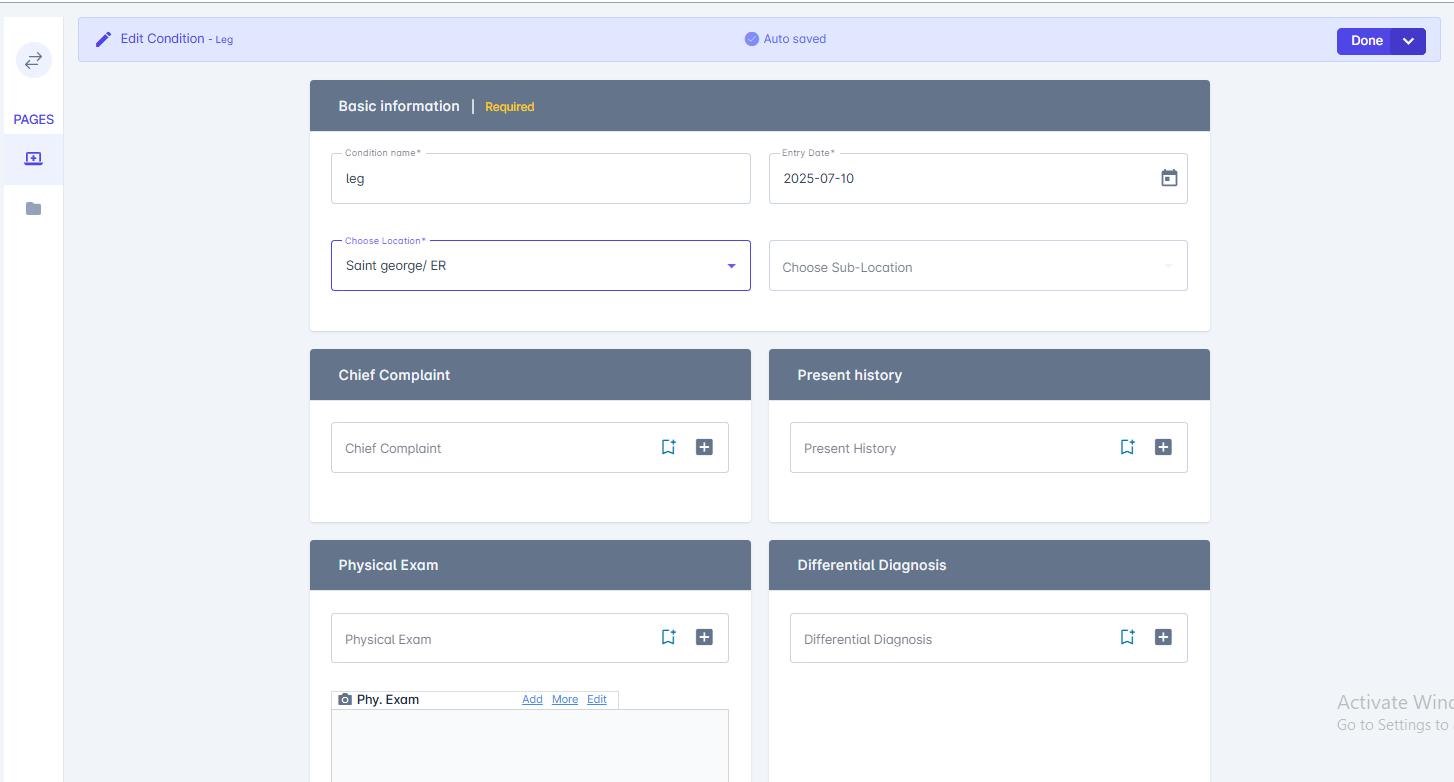 ## How to Edit a Condition?
* **Open the Patient Profile:**\
Select the patient from the patient list whose condition you want to update.
* **Go to the Conditions Section:**\
Navigate to the **Conditions** within the patient’s profile.
* **Select the Condition to Edit:**\
Click on the condition you want to modify to open its details.
* **Update Condition Details:**\
Click \*\*Edit \*\*at the right side of the condition to edit name, notes, diagnoses, or any other relevant information.
* **Save Changes:**\
Click **Done** to apply the updates to the patient’s record.
## How to Edit a Condition?
* **Open the Patient Profile:**\
Select the patient from the patient list whose condition you want to update.
* **Go to the Conditions Section:**\
Navigate to the **Conditions** within the patient’s profile.
* **Select the Condition to Edit:**\
Click on the condition you want to modify to open its details.
* **Update Condition Details:**\
Click \*\*Edit \*\*at the right side of the condition to edit name, notes, diagnoses, or any other relevant information.
* **Save Changes:**\
Click **Done** to apply the updates to the patient’s record.
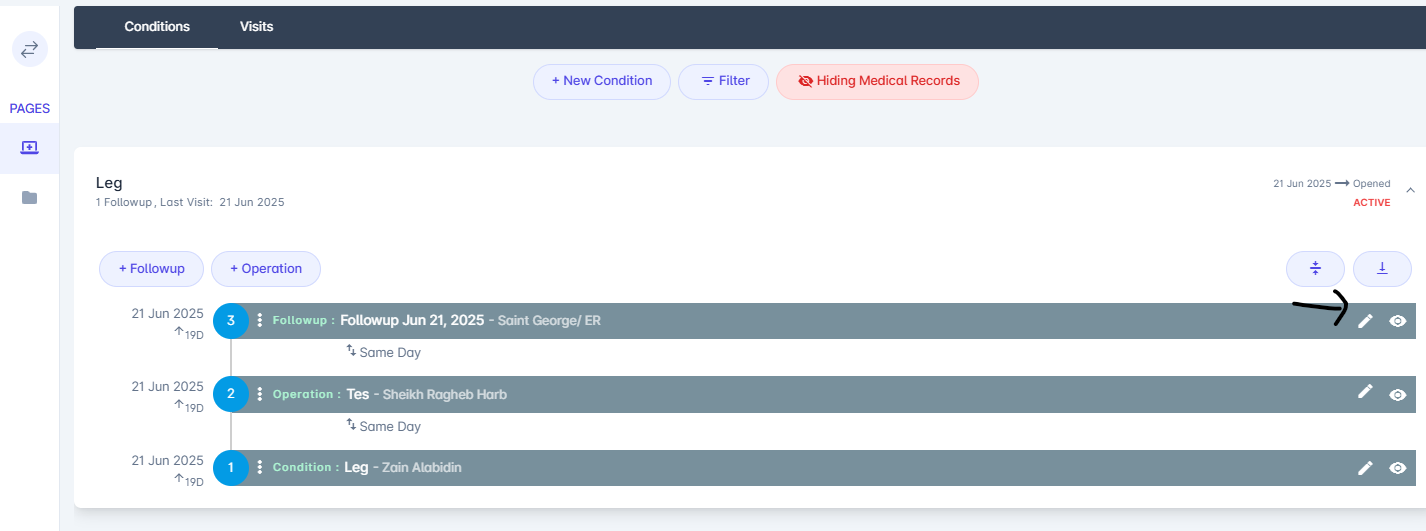 ## Condition details:
* Basic information
* chief complain
* Present history
* Physical exam
* Differential diagnosis
* physical exam
* Diagnoses
* Medication:
## Condition details:
* Basic information
* chief complain
* Present history
* Physical exam
* Differential diagnosis
* physical exam
* Diagnoses
* Medication:
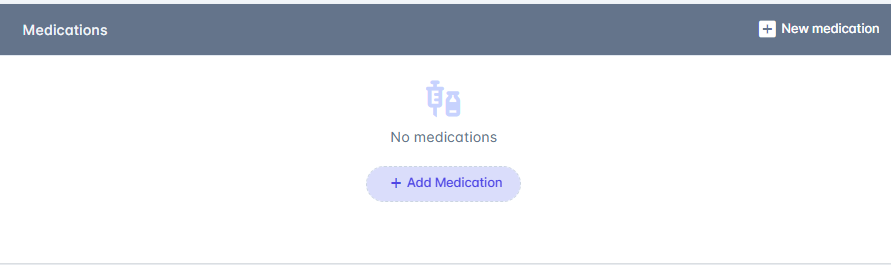 When you add a medication a page are shown;
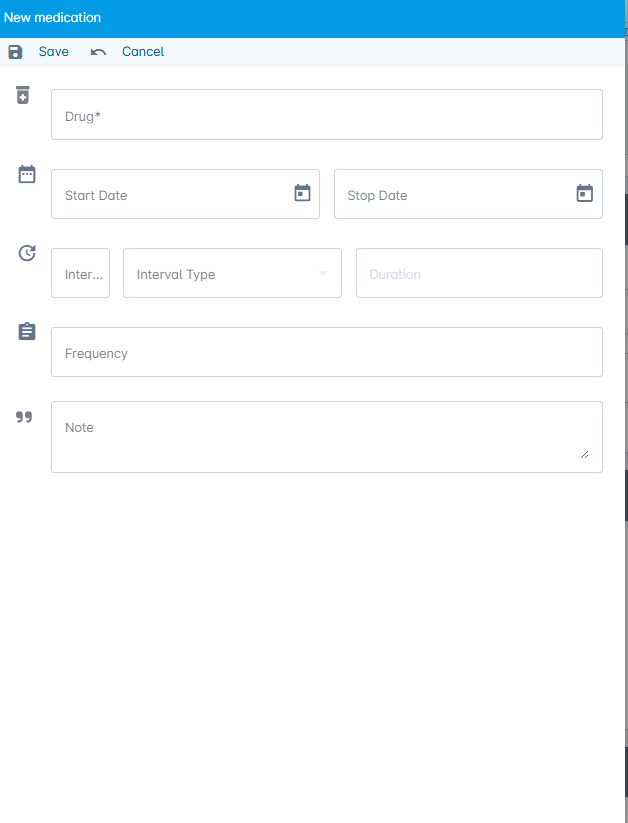 You can add the name of the drug, start date and stop date, frequency and notes, then click**save**
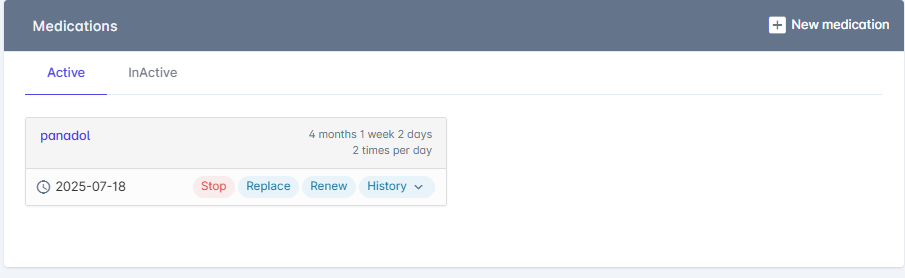
You can \*\*Stop \*\*, \*\*Replace \*\*, and \*\*Renew \*\*the medicine ,also history of medicine is shown
You can add the name of the drug, start date and stop date, frequency and notes, then click**save**
You can \*\*Stop \*\*, \*\*Replace \*\*, and \*\*Renew \*\*the medicine ,also history of medicine is shown
 * Notes
* Attachment
* Notes
* Attachment