> ## Documentation Index
> Fetch the complete documentation index at: https://docs.medicare-group.net/llms.txt
> Use this file to discover all available pages before exploring further.
# Layout Guide
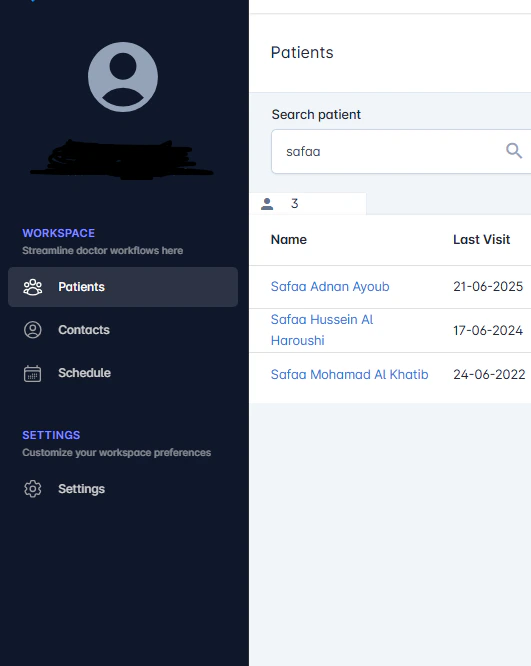
> MedRay provides a clean and intuitive interface designed to help users quickly access the tools and information they need. Below is a guide to help you navigate the system effectively.
### Sidebar Menu (Main Modules)
Located on the left-hand side, the sidebar is your primary navigation tool. It includes:
* **Patient File** – View, create, and manage full patient medical records
* **Contact File** – Manage individuals who are not yet full patients
* **Schedule** – Schedule, view, and update all clinic appointments
* \*\*Settings \*\* – Configure clinic-wide preferences and system behavior
 Access to the **Settings** module is restricted by default. The **Admin** has the authority to grant or revoke permission for other users to access system settings based on their roles and responsibilities.
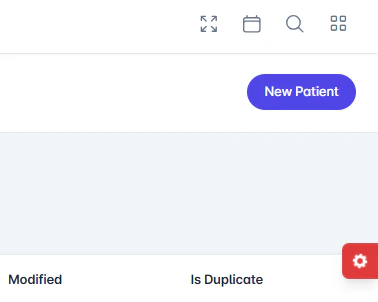
### Top Bar (Utilities)
At the top of the screen, you'll find:
* **Toggle Fullscreen**-expands the view for a distraction-free workspace.
* **Create appointment** -to schedule a visit or event for a patient or contact.
* **Search Bar** – Quickly search for patients, contacts, or appointments
* **Control** – Show upload files and event
Access to the **Settings** module is restricted by default. The **Admin** has the authority to grant or revoke permission for other users to access system settings based on their roles and responsibilities.
### Top Bar (Utilities)
At the top of the screen, you'll find:
* **Toggle Fullscreen**-expands the view for a distraction-free workspace.
* **Create appointment** -to schedule a visit or event for a patient or contact.
* **Search Bar** – Quickly search for patients, contacts, or appointments
* **Control** – Show upload files and event
 ### Layout Setting
The red **gear icon** on the bottom-right corner opens the Interface Settings panel, allowing users to personalize their workspace. Options include:
* **Theme** –Choose a color style that suits your workflow
* **Layout** – Modify interface structure for personal preference
* **Color Scheme** – switch between light or dark mode
### Layout Setting
The red **gear icon** on the bottom-right corner opens the Interface Settings panel, allowing users to personalize their workspace. Options include:
* **Theme** –Choose a color style that suits your workflow
* **Layout** – Modify interface structure for personal preference
* **Color Scheme** – switch between light or dark mode
 > These changes affect only the current user’s view and do not impact system-wide settings.
### In-Page Navigation
Inside each module, navigation tabs help you move between sections. For example:
* In **Patient File**, tabs might include: Personal Info, Medical History, Visits, Documents
* In **Appointments**, tabs may separate Scheduled, Completed, and Canceled visits
***
### Tips for Efficient Navigation
* Use the **search bar** for quick access instead of browsing menus
* Hover over icons to view tooltips explaining their function
***
> These changes affect only the current user’s view and do not impact system-wide settings.
### In-Page Navigation
Inside each module, navigation tabs help you move between sections. For example:
* In **Patient File**, tabs might include: Personal Info, Medical History, Visits, Documents
* In **Appointments**, tabs may separate Scheduled, Completed, and Canceled visits
***
### Tips for Efficient Navigation
* Use the **search bar** for quick access instead of browsing menus
* Hover over icons to view tooltips explaining their function
***